Platform
Moderator Tools
Moderator Tools allow hosts, admins, and designated moderators to maintain a safe and productive chat environment during broadcasts.
Moderation Capabilities
Manual Moderation
Available to hosts, admins, and users with the Moderator role:
- Delete message Remove a specific chat message (with confirmation).
- Block user Prevent a user from chatting in the stream. Blocked users appear in the Blocked Users list.
- Assign moderator Grant a trusted user the Moderator role, giving them access to moderation actions.
- Pin/Unpin message Highlight or remove a pinned message at the top of the chat.
How to Moderate
In the Creator Studio (Web): Hover over a chat message to reveal the moderation menu. From there you can delete the message, block the user, or assign them as a moderator.
In iOS or Android apps: Long-press on a chat message or user avatar to bring up the same moderation options available in the Creator Studio.
Basic Filter Moderation
Before the AI gets involved, HotMic supports straightforward keyword filtering. Admins can maintain a list of words and phrases that are automatically blocked from the chat — useful for slurs, banned brand names, leaked URLs, spam phrases, or anything else you simply don't want appearing in the room.
- Add or remove words and phrases at the organization level.
- Filters apply to every stream within the organization in real time.
- Matched messages are blocked before they reach viewers and never enter the live chat.
- Filter lists can be updated at any time and take effect immediately.
Filter moderation runs alongside Manual and Automated AI Moderation — it's the simplest first line of defense for content you always want blocked.
Automated AI Moderation
HotMic includes built-in AI-powered chat moderation that runs in real time during every broadcast, removing the need for hands-on manual moderation in most cases.
Custom Community Guidelines
Customers can upload their own community guidelines at the organization level — the same rules they enforce elsewhere in their brand or app. HotMic's AI evaluates every incoming chat message against those guidelines and decides whether the message is fit for the live chat room.
Because the AI runs against your own policies (not a generic toxicity filter), the moderation behavior matches the standards you've already defined for your community. New or updated guidelines can be re-uploaded at any time, and all future messages are evaluated against the latest version.
How It Works
- Incoming chat messages are evaluated by the AI moderation system against your uploaded community guidelines.
- Messages that don't meet the guidelines are automatically held back from the live chat.
- Flagged messages appear in the Moderation Dashboard for optional review.
- Moderators can Allow, Delete, or Block the user for any flagged message — but in most cases the AI eliminates the need for manual intervention.
Feedback Loop
Every moderator decision — accepting or deleting a chat — is fed back into the AI moderation prompt. The system reviews those decisions over time and refines how it interprets your community guidelines, so the AI gets sharper at applying your standards the more it runs.
Over time, this means fewer edge cases reach a moderator at all: the AI learns the gray areas of your guidelines from the calls your team actually makes.
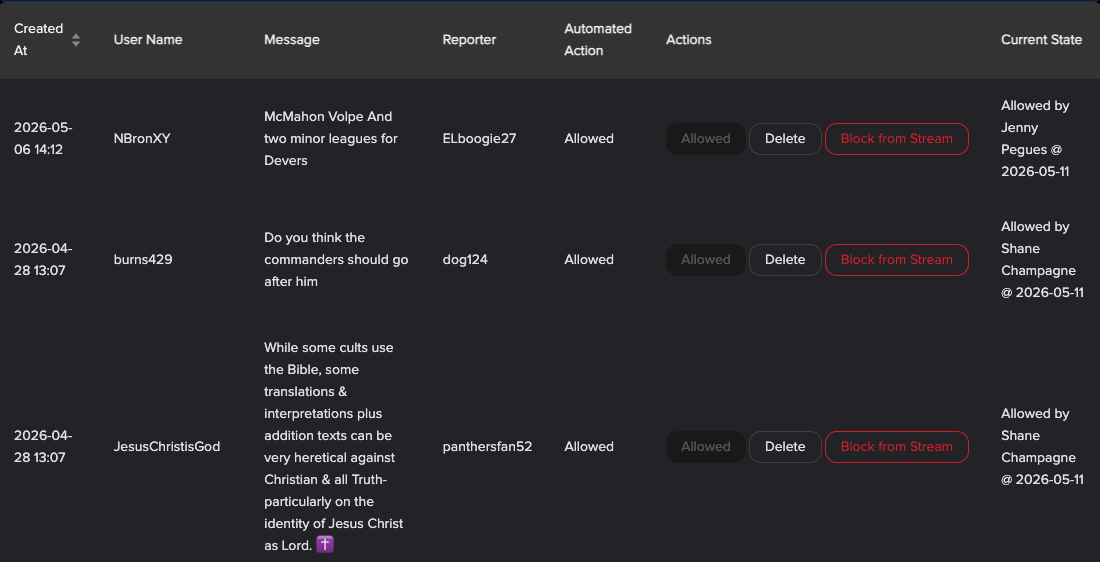
Moderation Dashboard
The Creator Studio includes a dedicated Moderation page with two tabs:
Automated Chat Moderation tab:
- Table of flagged messages with columns: Created At, User Name, Message, Reporter, Automated Action, Actions, Current State.
- Action buttons: Allow, Delete, Block from Stream.
- Current State shows who took action (moderator name + date, or "Auto" for automated decisions).
- Sortable by date.
Blocked Users tab:
- Search blocked users by username.
- View which streams a user is blocked from.
- Blocked stream IDs link directly to the broadcast page.
Best Practices
- Use AI moderation as a first line of defense, with human moderators for edge cases.
- Review the Moderation Dashboard after each broadcast to refine your moderation approach.